Setting up Google Analytics to work with Liferay DXP 7.2
How To articles are not official guidelines or officially supported documentation. They are community-contributed content and may not always reflect the latest updates to Liferay DXP. We welcome your feedback to improve How To articles!
While we make every effort to ensure this Knowledge Base is accurate, it may not always reflect the most recent updates or official guidelines.We appreciate your understanding and encourage you to reach out with any feedback or concerns.
legacy-article
learn-legacy-article-disclaimer-text
Issue
- Setting up Google Analytics to work with Liferay DXP 7.2 is easy and is described in our documentation here. However, there is some setup that is required on the Google Analytics side so that the two can work together.
Environment
- Liferay DXP 7.2
- Google Analytics
Resolution
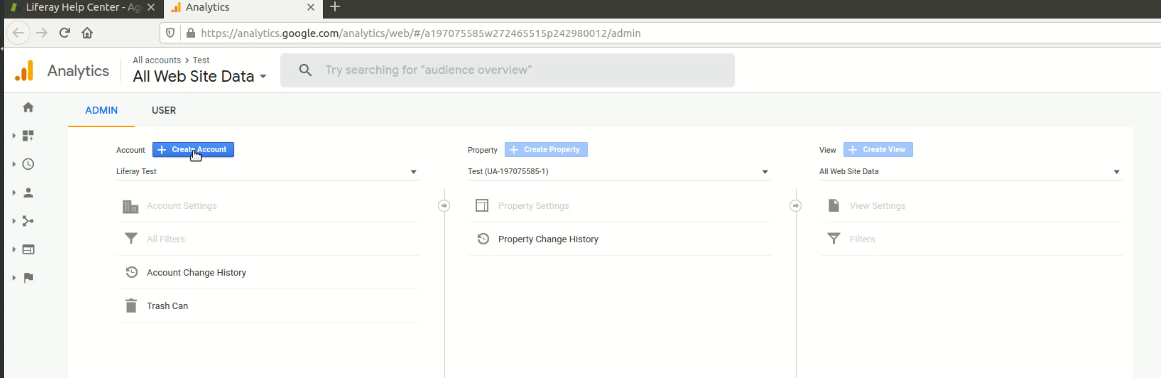
- Go to analytics.google.com and in the Admin tab, create a new Account
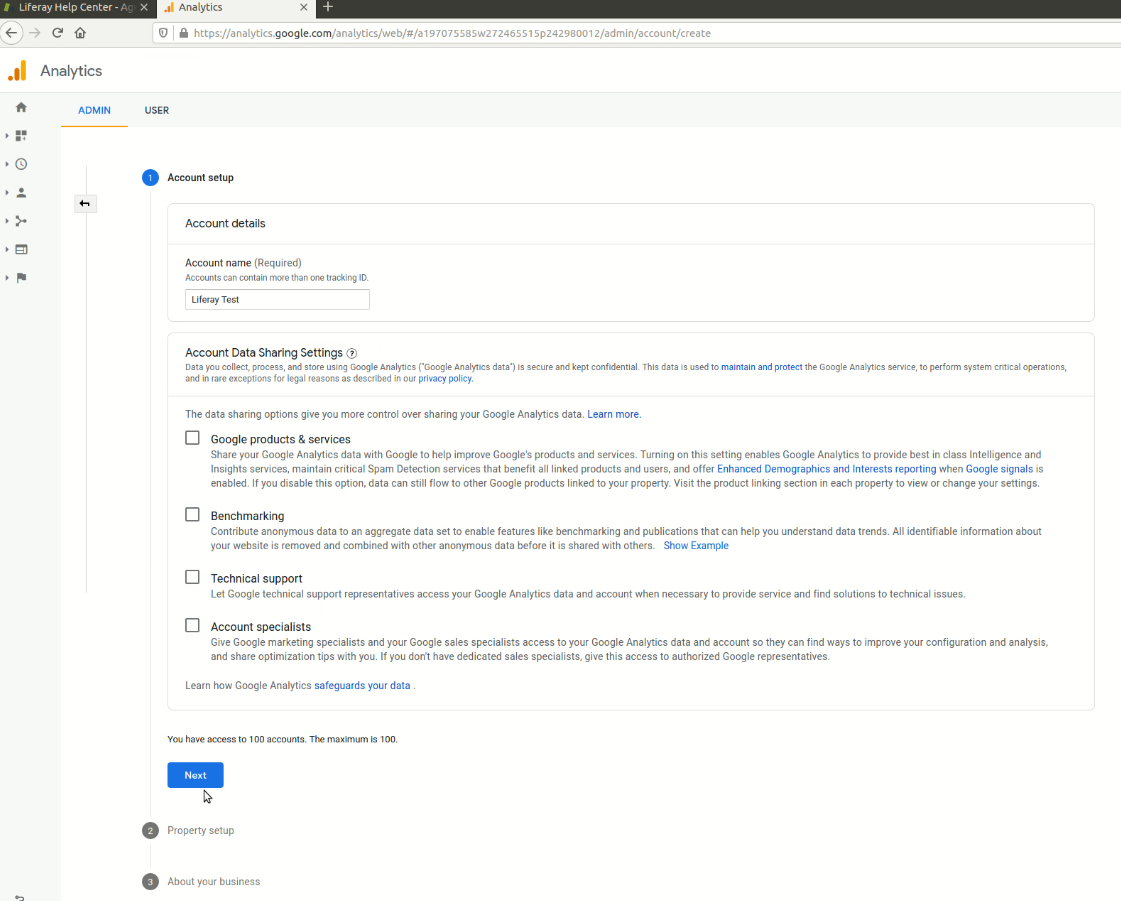
- In Account setup, add an Account Name (e.g. Liferay Test) and then unselect the data sharing options and then click Next
- Under Property setup, provide a Property Name (e.g. Test) and then show advanced options. Enable "Create a Universal Analytics Property" and add your website URL, then select Next

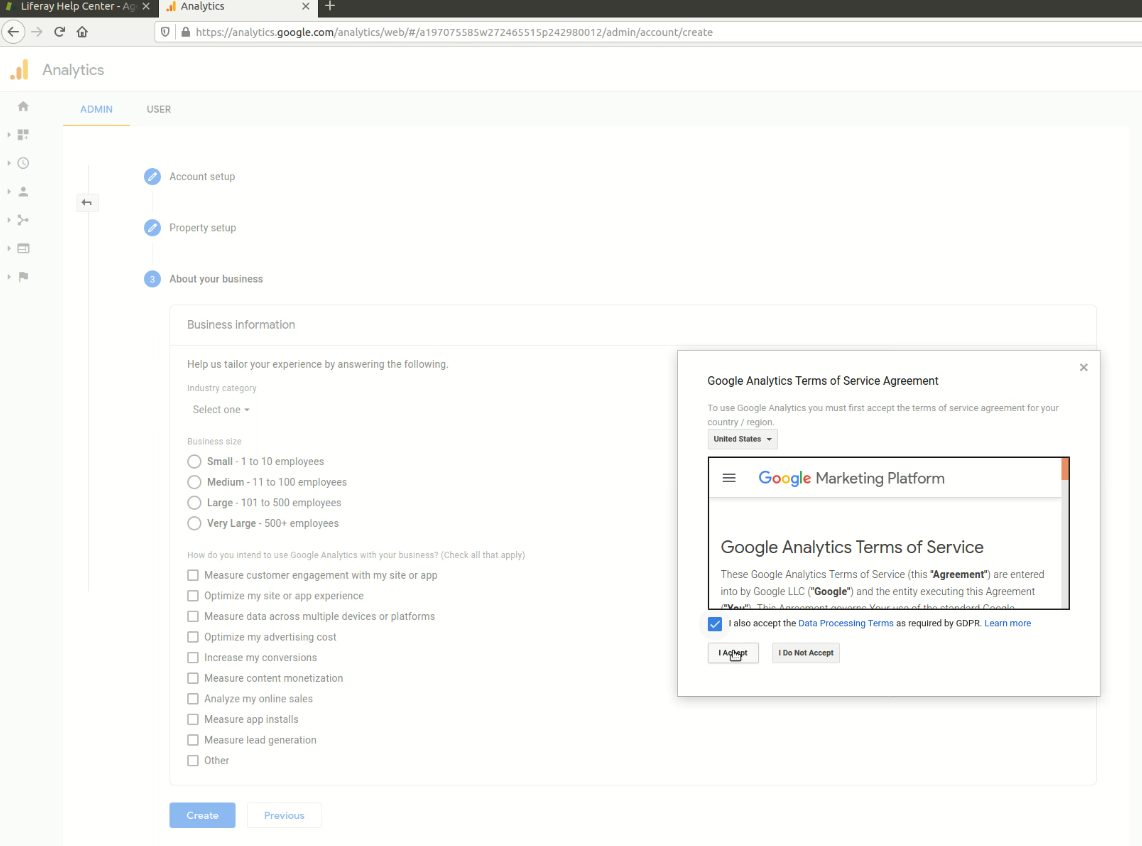
- Under "About your business", select Create, and then accept the Terms
- Select the Accounts tab near the top of the page and change the account to the one that was just created

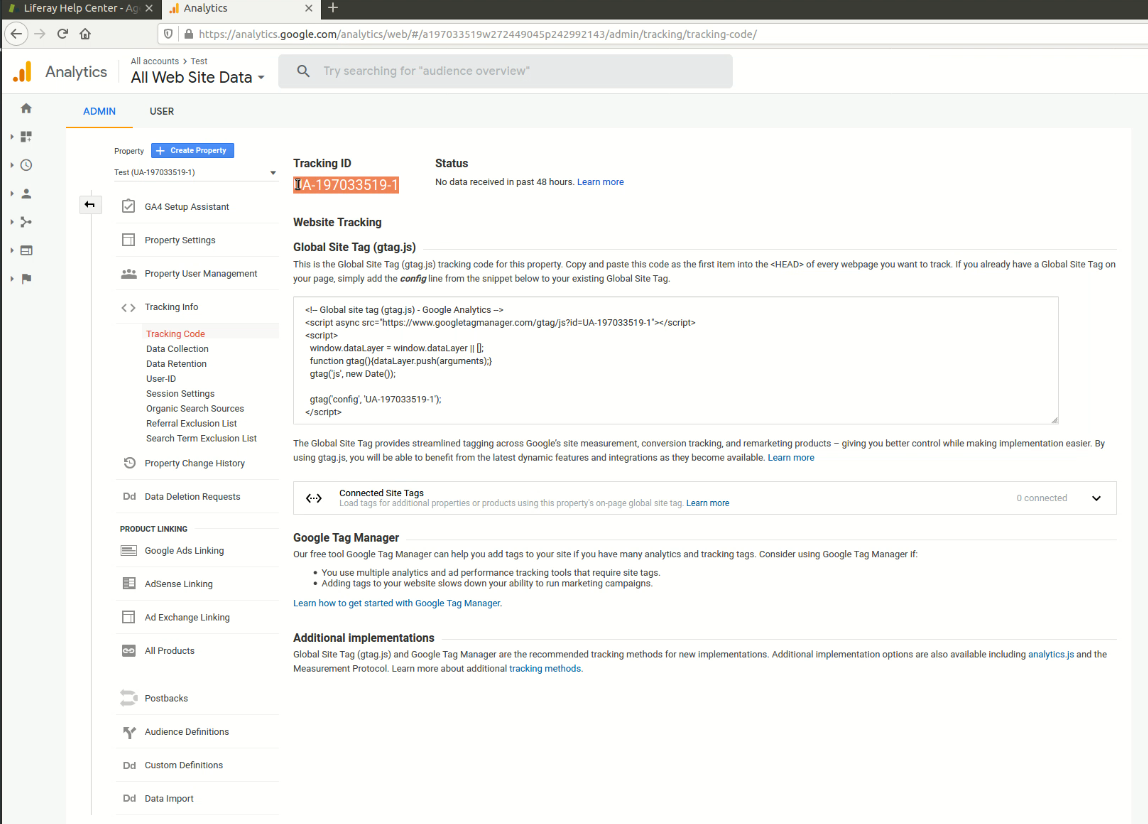
- Go to Admin tab, and under Property -> Tracking Info, select Tracking code

- Copy the Tracking ID that is shown
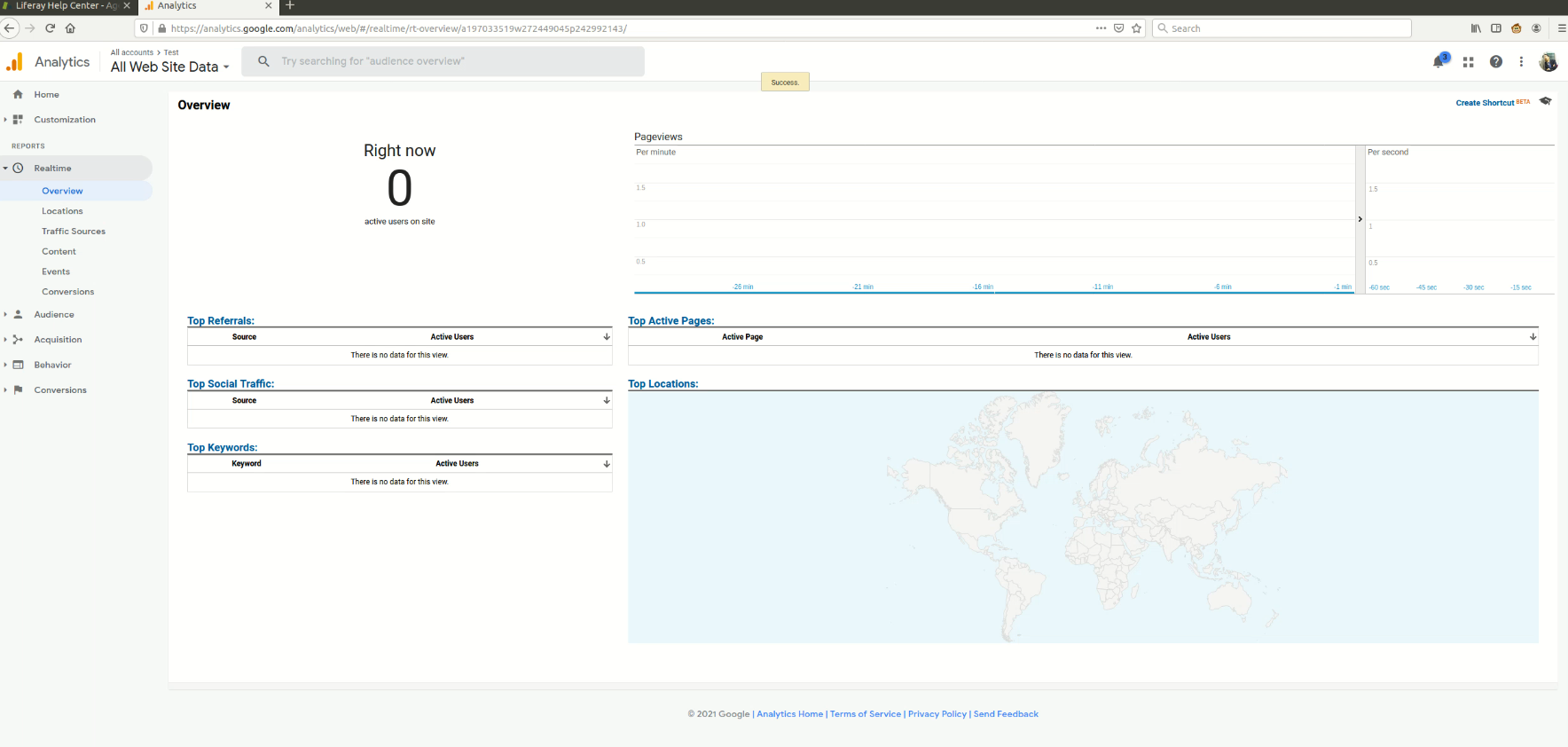
- Go to Realtime -> Overview to view the page statistics
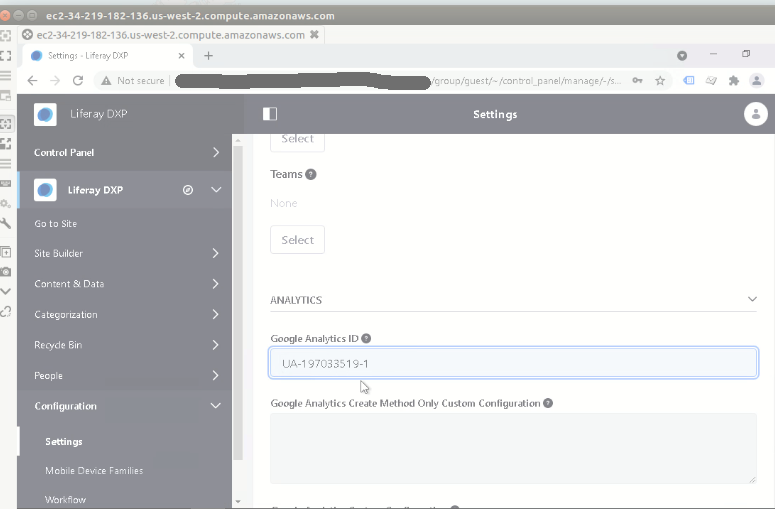
- Start your Liferay bundle, and then go to Site -> Configuration -> Settings -> Advanced and the Tracking ID that you copied to the Google Analytics ID field
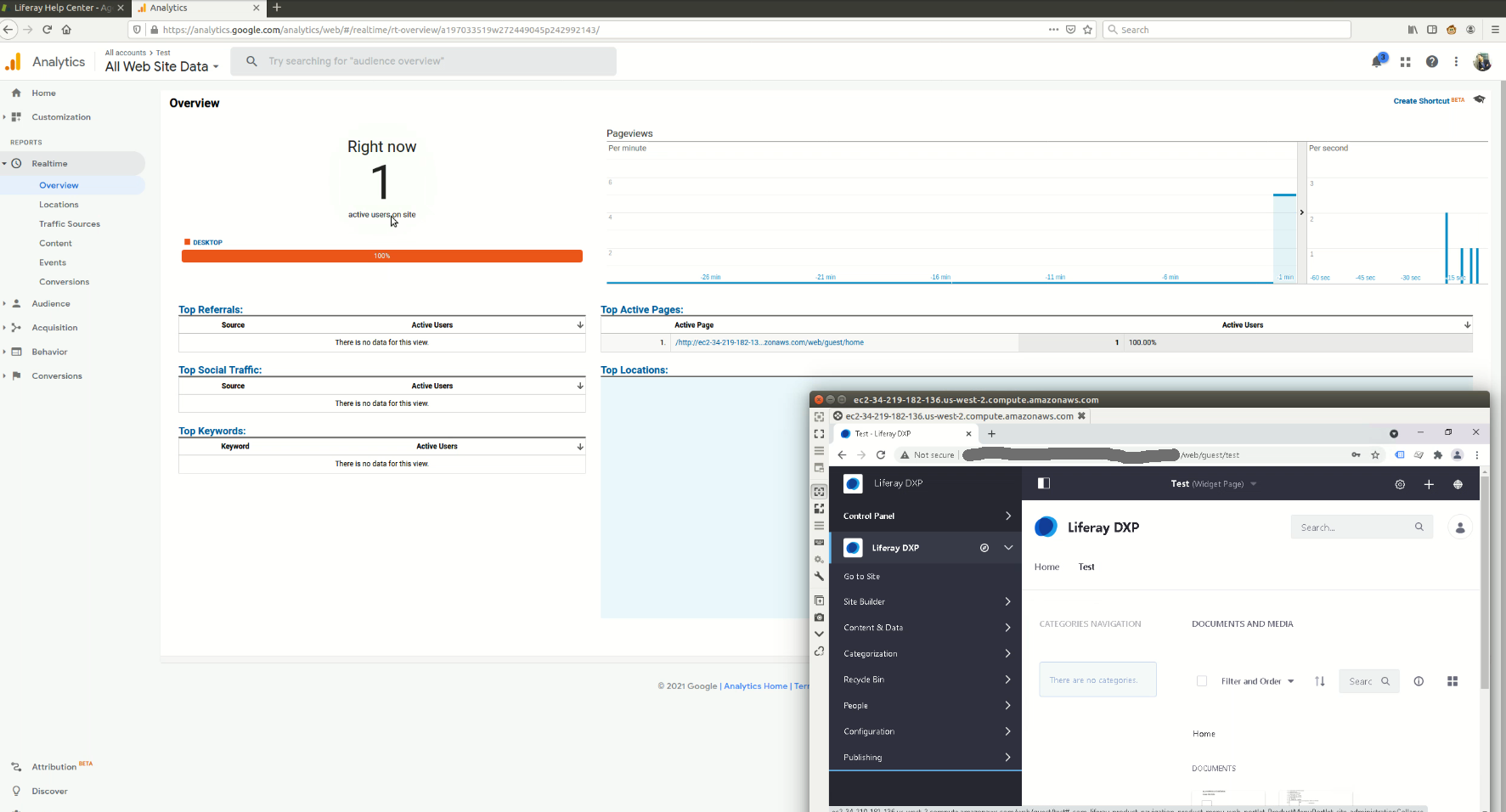
- Google Analytics now tracks that a user is accessing the page and can track page views
did-this-article-resolve-your-issue